How to scan documents with your phone into a clean PDF
Scanning documents with your phone gives you a PDF to submit, email or share without a scanner. Follow a few simple steps and the result is straight, white and sharp, close to what a flatbed scanner produces.
Before you scan the document
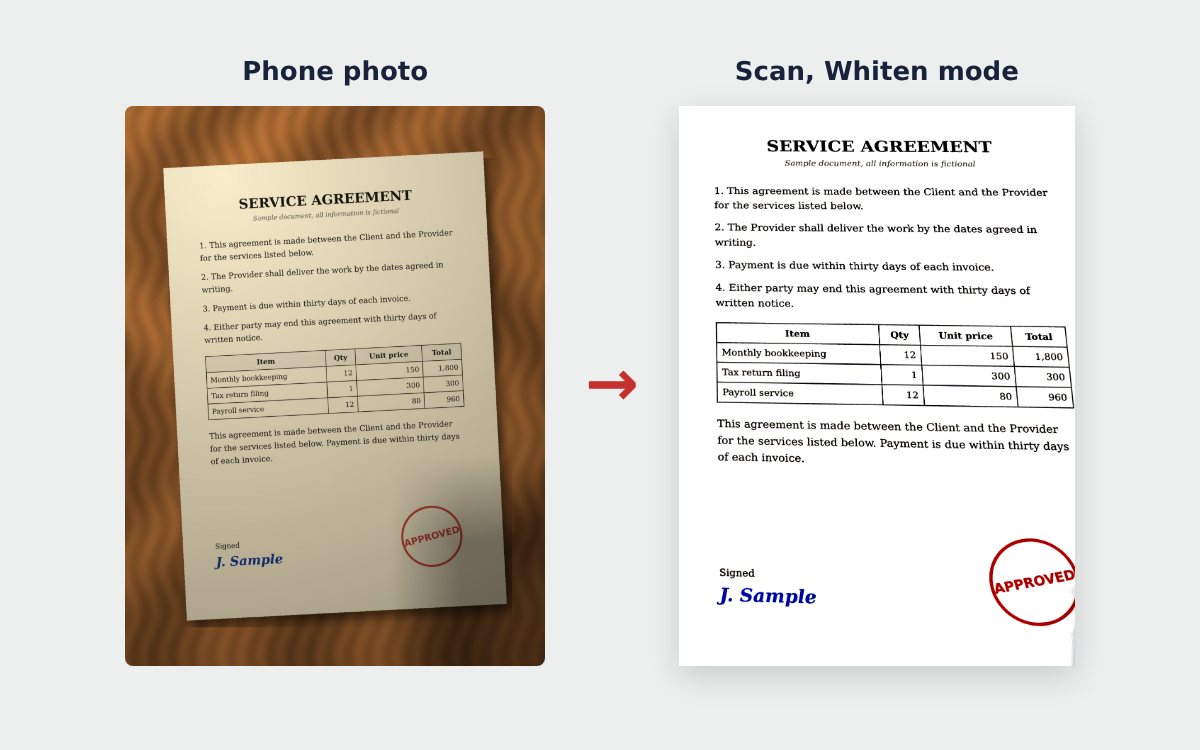
- Put the page on a dark, flat surface such as a wooden table or a dark folder. The more it contrasts with the paper, the better the edges are detected.
- Find a spot with bright, even light, and keep the shadow of your hand and phone off the page.
- Turn off the flash and wipe the camera lens.
- Flatten pages that are folded or curled.
How to scan documents with your phone to PDF
- Open the free online scanner in your phone browser.
- Tap Take photo with camera, hold the phone parallel to the page with all 4 corners in the frame, and shoot. Already have a photo? Tap Upload images.
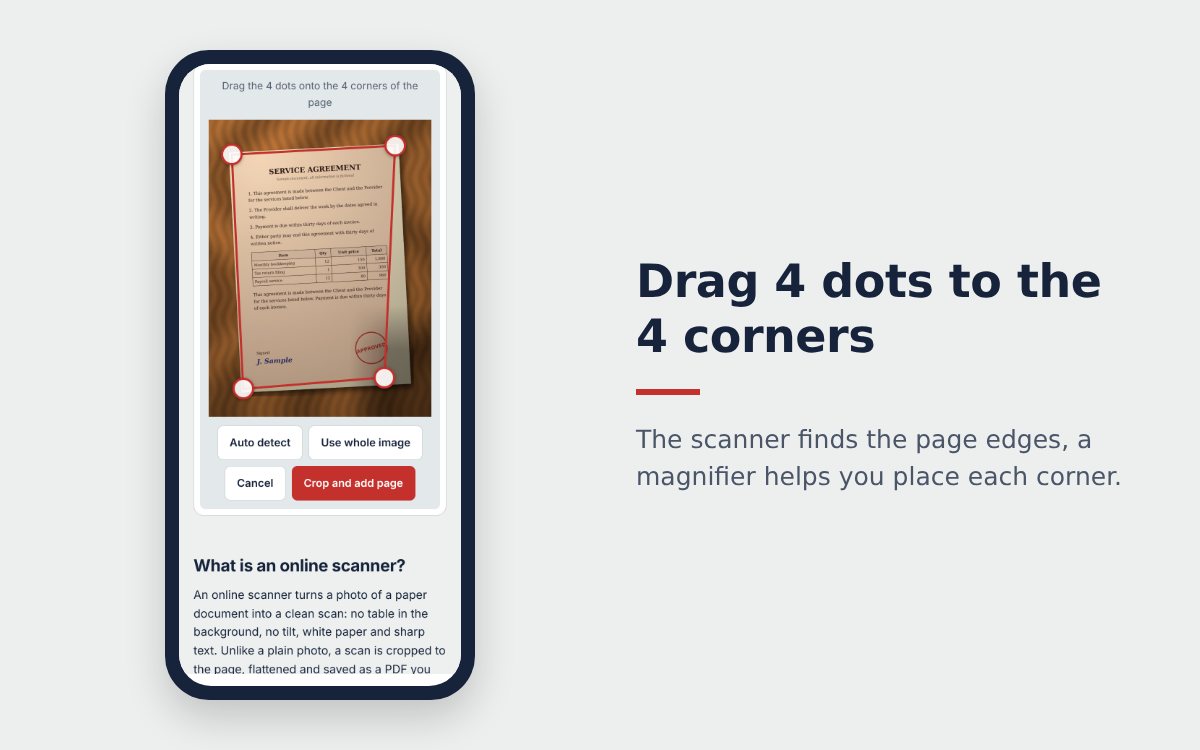
- The scanner finds the 4 corners of the page. If the frame is off, drag the dots onto the corners and tap Crop and add page.
- Pick a color mode. Whiten is selected by default and suits most paper documents.
- Tap + Take another for the next pages and reorder them if needed.
- In the Download tab, name the file and tap Download PDF, or Share PDF to send it by WhatsApp or email.
Which color mode to choose
| Mode | Use it for |
|---|---|
| Original | Keeps the photo as taken, for pictures and documents where colors must stay exact |
| Whiten | Letters, forms, receipts: shadows removed, pure white paper, stamps and blue ink kept |
| Sharp | Documents with color logos or highlights: brighter page, stronger contrast |
| Monochrome | Printed text and contracts you will print in black and white |
Tips for a scan as clear as a scanner
- Avoid glare: glossy or laminated paper reflects ceiling lights. Tilt the phone slightly so the light does not hit the page straight on. Text under a fully white spot cannot be recovered by any software.
- Get close: let the page fill most of the frame, the text will be sharper.
- Hold still: rest your elbows on the table so the photo is not blurry.
- Split long documents: around 20 pages per file is faster to process and lighter to send.
Built-in scanning apps
Some phones have a document scanner built in, for example in the Notes app on iPhone or in Google Drive on Android (the menu names vary by version). Compare the options in free online scanner: 4 ways to scan for free. Your file is too heavy afterwards? See how to compress a PDF under 1 MB.
Frequently asked questions
Do I need an app to scan documents with my phone?
No. You can scan documents online right in your phone browser. If you scan often, add the scanner to your home screen to open it like an app.
Should I save the scan as PDF or as an image?
Save a PDF when the document has several pages or goes into an application. Save a JPG when you only need to send one page quickly in a chat.
Why is my scan tilted or missing an edge of the page?
Usually the photo was taken at an angle or the page was not fully in the frame. Shoot from straight above with all 4 corners visible, then drag the 4 corner dots onto the edges before cropping.
More guides
How to compress a PDF under 1 MB or 500 KB for online forms
Compress a PDF under 1 MB, 500 KB or 200 KB for job applications, government portals and email: type the exact size, check readability, keep stamps and signatures.
Free online scanner: 4 ways to scan documents without paying
Four free ways to scan documents online with a phone or computer: pros and cons of each, how to choose, and privacy tips when you scan personal documents.
Convert images to PDF online for free, no sign-up
Convert images to PDF online for free with no account or app. How to pick a safe tool that does not upload your photos, and the steps to turn JPG or PNG into PDF.