How to scan both sides of an ID card on one A4 page
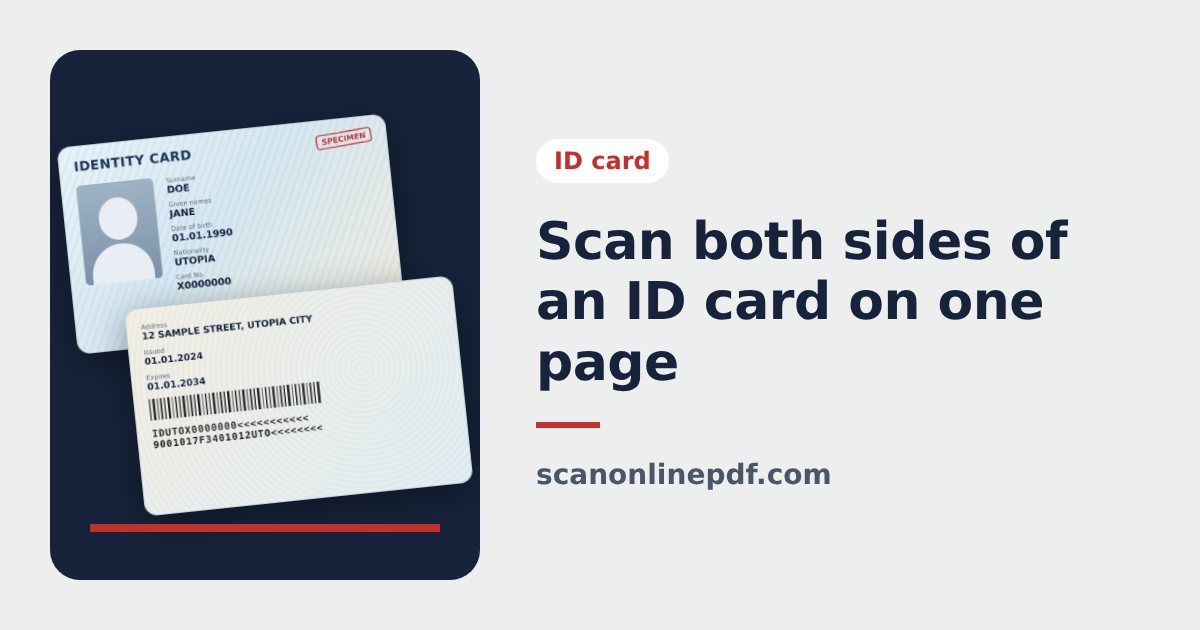
Banks, employers, landlords and online forms often ask for a copy of your ID card with both sides on one page. You can make it yourself with your phone in about a minute, with no scanner and no trip to a copy shop.
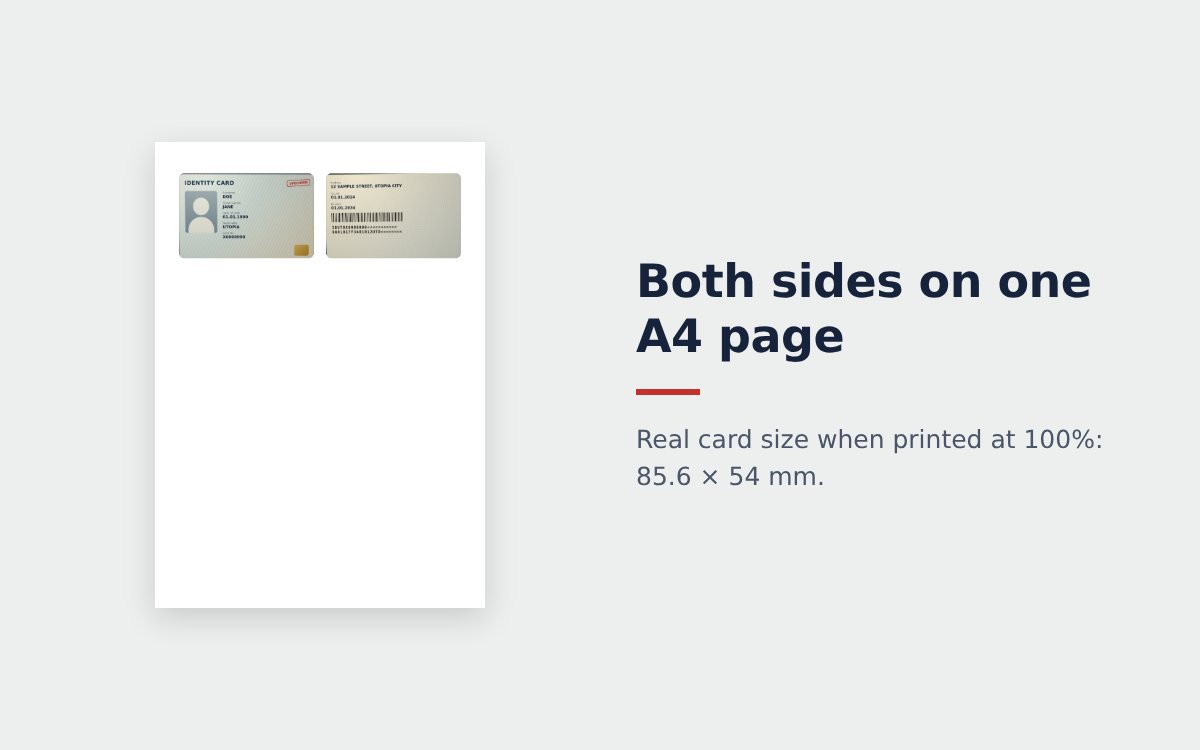
Why put both sides of the ID card on one A4 page
- The recipient sees the front and the back in one file instead of opening several photos.
- Printed, it looks just like a photocopy of an ID card, ready to attach to a paper application.
- Printed at real size, the copy matches the card exactly, which makes it easy to compare.
How to scan an ID card front and back with your phone
- Open the ID card scanner in your phone browser.
- Place the card on a dark surface and tap Take photo under Front. The tool finds the 4 corners of the card and straightens it to the exact card ratio. If a corner is off, drag the dot to the right spot and tap Done.
- Do the same under Back. If the side is upside down, tap Flip.
- Choose the A4 page layout: portrait with both sides next to each other, portrait with the front on top and the back below, or landscape.
- Type a protective watermark if you want one, then tap Download JPG, Download PDF or Share to send it by WhatsApp or email.
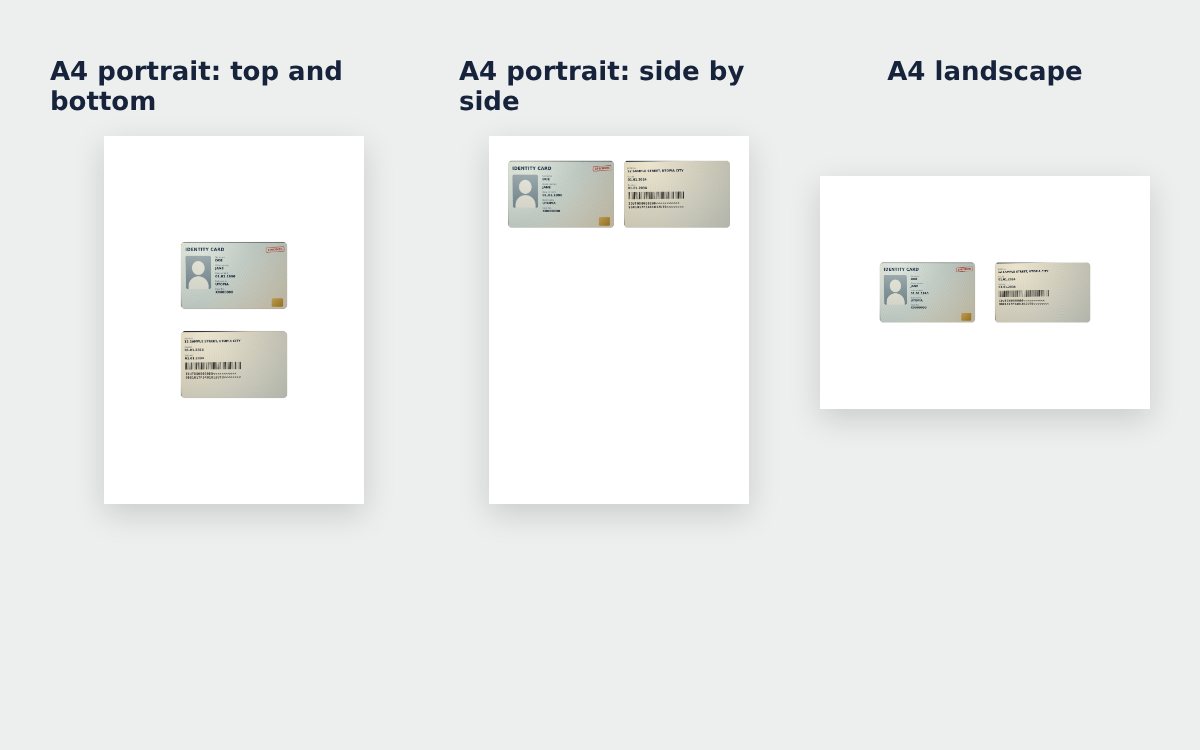
Print the ID card copy at real size
Choose Real card size (85.6 × 54 mm). This is the standard ID-1 size used by most national ID cards, residence permits, driving licences and bank cards. When you print, select A4 paper, scale 100% and turn off Fit to page. If the copy is only going to be read on screen, 1.5× larger makes small text easier to read.
Protect your ID card scan before sending it
A scan of your ID card can be stored and reused for something you never agreed to. Always write what the copy is for on the scan itself.
- Type something like "For opening an account at ABC Bank only, 14/10/2026". The text runs diagonally and lightly across both sides, and the details underneath stay readable.
- Send the scan only to organizations you trust and that really need it.
- The photos of your card are processed on your phone and never uploaded to a server.
Scan other documents too
The ID card tool is built for cards. For letters, contracts and forms with several pages, the free online scanner crops each page, whitens the background and combines the pages into one PDF.
Want the details on cropping, glare and color modes? Read how to scan an ID card with your phone, and learn what a scanned ID card is and how to send it safely.
Frequently asked questions
How do I print the scan at the real size of the card?
Choose Real card size when you scan. In the print dialog pick A4, scale 100% and turn off Fit to page. Each side then prints at exactly 85.6 × 54 mm.
Does a scan replace a certified copy?
No. A scan is handy for sending online or completing a file. When an office asks for a certified copy, you still need to have it certified by an authorized office, such as a notary or the issuing authority.
Should I scan the card in color or black and white?
Keep Original or Sharp for anything sent online, so the portrait stays in color. Choose Monochrome only if you will print on a black and white printer.
More guides
How to compress a PDF under 1 MB or 500 KB for online forms
Compress a PDF under 1 MB, 500 KB or 200 KB for job applications, government portals and email: type the exact size, check readability, keep stamps and signatures.
Free online scanner: 4 ways to scan documents without paying
Four free ways to scan documents online with a phone or computer: pros and cons of each, how to choose, and privacy tips when you scan personal documents.
Convert images to PDF online for free, no sign-up
Convert images to PDF online for free with no account or app. How to pick a safe tool that does not upload your photos, and the steps to turn JPG or PNG into PDF.